How to Turn a PowerPoint into a Video (Without Losing Your Sanity).
If you’ve ever wondered whether PowerPoint is just for slides… the answer is: yes. And also absolutely not.
PowerPoint is, quietly, one of the most accessible video-creation tools sitting on your desktop. No fancy converters, no extra apps, no budget approvals required. And while R+C is (very deliberately) not in the business of producing video output from PowerPoint, we are in the business of helping teams communicate with clarity, confidence, and a little creative flair. So today’s tutorial leans into efficiency, not artistry.
If you’re using Microsoft Office 365, you have everything you need to create a simple, polished video that helps your message land. Whether you’re preparing internal training, coaching your team, or enhancing your next big investor moment.
This guide is intentionally straightforward. No clutter. No tangents. Just clean, step-by-step instructions you can use immediately.
Ready? Let’s dive in.
How to Convert a PowerPoint Presentation into a Video.
Creating a video directly from PowerPoint is surprisingly simple, — and wonderfully practical for internal communications.
1. Build your slide deck. Your content should be complete and in its final order before you hit “record.”
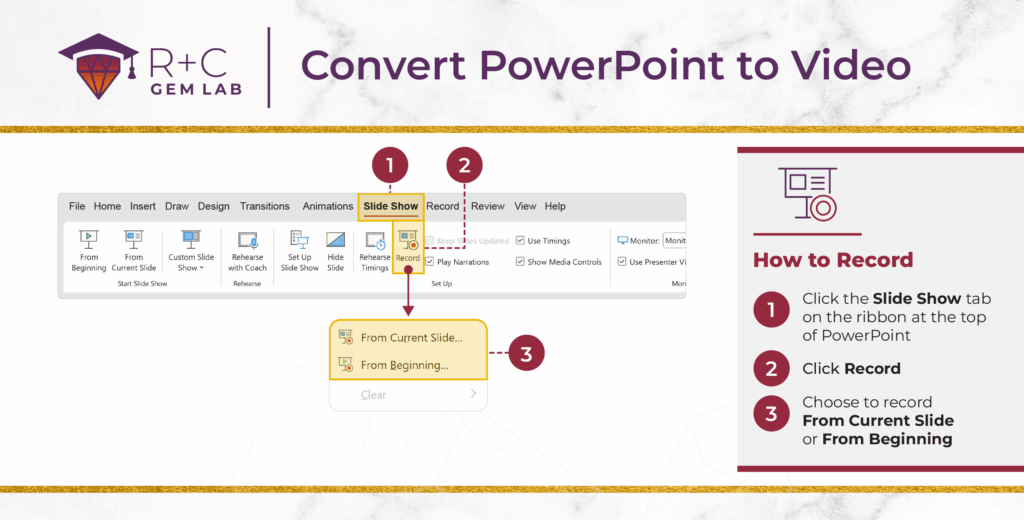
2. Open the “Slide Show” tab. This is where all recording features live.
3. Click “Record Slide Show.” Choose whether you want to begin from the current slide or from the very beginning.
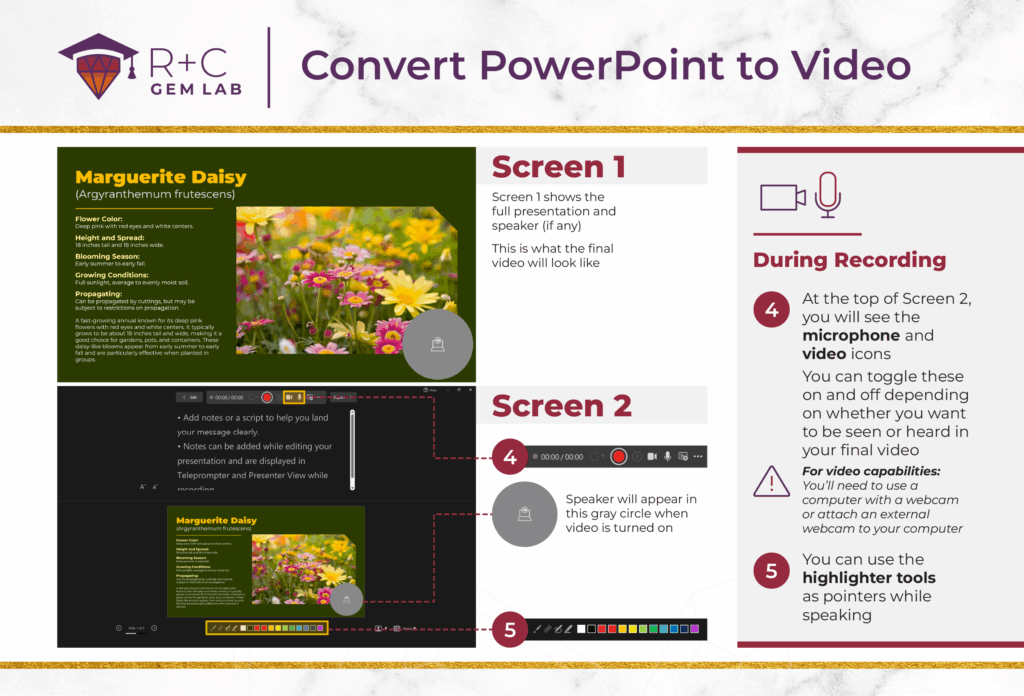
4. Adjust your recording controls. In the bottom corner, you’ll see toggles for your microphone and camera. Use them to decide:
- Do you want your voice recorded?
- Do you want your video captured using your webcam? (Attach one if your computer doesn’t have it.)
5. Use on-screen tools while presenting. If you want to highlight data, underline key phrases, or guide attention, the built-in pointer and highlighter tools have your back.
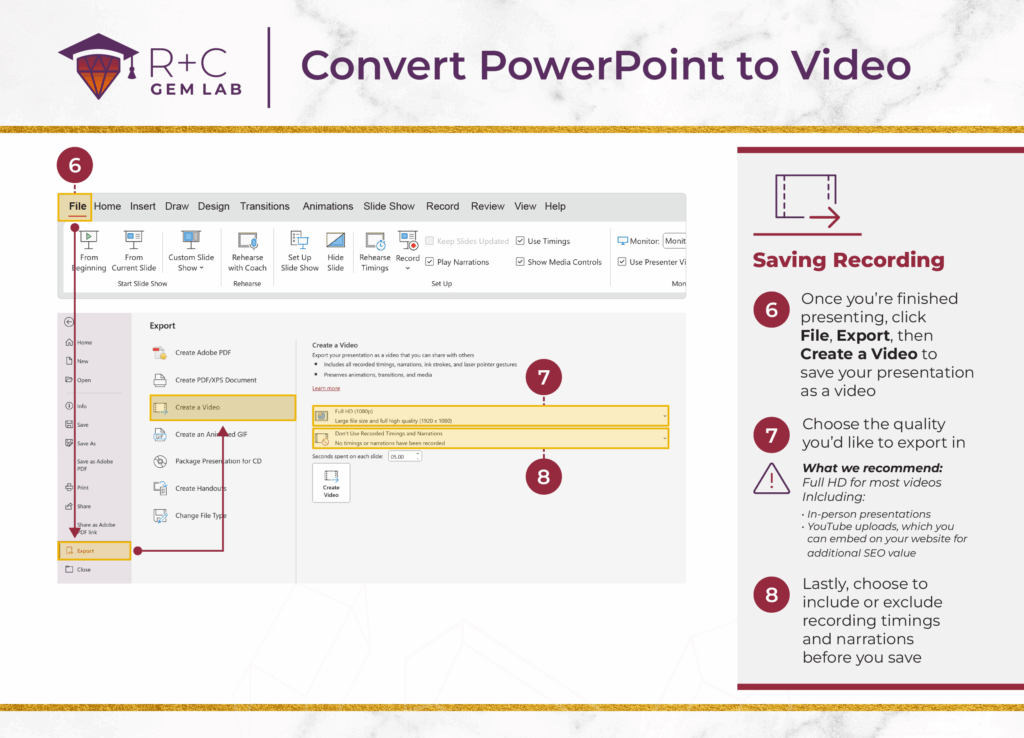
6. When you’re finished, export your video. Go to File → Export → Create a Video.
7. Select your video quality. For most internal and external use cases, Full HD (1080p) is perfectly crisp.
8. Choose whether to include timings and narrations. If you’ve recorded voiceover or set slide timings, decide whether those should carry into the exported file.
That’s it. No converter required. Your PowerPoint becomes a video, ready to share.
How to Use PowerPoint Videos in Real Life.
Video can be a surprisingly effective tool for internal communications, — especially when you want your message to be consumed consistently across teams, offices, or time zones.
Here are practical, business-first ways executives and marketing teams can use PowerPoint videos:
1. In-Person Presentations.
If you’re presenting under strict time constraints (hello, leadership meetings), a timed video can keep you on pace — without constantly checking your watch.
Record the timing, skip the narration, and use the video as a structured rehearsal tool or a timing guide during the live session.
2. YouTube Videos for Education or Recruitment.
If your organization uses YouTube to publish explainers, onboarding content, or thought leadership, PowerPoint can help you produce simple, no-frills videos faster.
Just remember:
- Narration should speak to a YouTube-specific audience.
- Your slides may need slight adjustments to feel more “viewer friendly” than “meeting friendly.”
(And yes, embedding YouTube content back on your site is still a smart play for SEO.)
3. Long-Form Social Media (LinkedIn, Facebook, Instagram).
If live videos aren’t your thing, a PowerPoint-generated video gives you control, polish, and consistency.
Important: Adjust your aspect ratio.
- Horizontal for LinkedIn and YouTube
Vertical for Instagram (we know… videographers everywhere are sighing)
4. Short-Form Video (Reels, TikToks, YouTube Shorts).
PowerPoint can absolutely create simple text- or graphic-based short clips, making them ideal for internal comms recaps, quick tips, or team spotlights.
Just make sure your export is in 9:16 vertical format (1080 x 1920). Otherwise, your video will look like it fell asleep on the job.
So…What Will You Create First?
Now that you’ve mastered the basics, PowerPoint becomes more than a slide tool. It becomes a practical way to communicate visually in formats your teams already consume.
While R+C specializes in strategic presentation design (not video production), we love helping organizations elevate how they tell their stories. If you need help crafting a clear, compelling deck before you hit “record,” we’re your people.
And if you’re hungry for more quick, visual-communication tips, or just to see what we’ve been up to follow Ruby + Citrine on Instagram, LinkedIn and TikTok. Your feed will thank you.
