Beware the Frankendeck: Tips for Taming a Presentation that Refuses to Die
Every workplace has That One Deck. You know the one:
- It has been stitched down through generations of employees.
- No one knows who made the master file.
- The animations are unpredictable.
- The fonts shift randomly.
Congratulations – you have just met the dreaded Frankendeck.
As a presentation design firm, we’ve brought more decks back to life than we can count. And we’re here to tell you: the horror is real. But so is the hope. This guide will help you diagnose, understand, and—if you’re brave—finally lay your Frankendeck to rest.
Signs you may have a Frankendeck.
1. Slide 7 can’t be edited. At all. You click, highlight. You cry. Nothing happens. The text box has become one with the background. Even “Send to Back” mocks you.
2. Mysterious formatting mutations. You apply a layout to one slide, and three others morph into one. Font sizes triple. Charts vanish.
3. Animations you didn’t create. You didn’t add that spinning pie chart. Or that dramatic dissolve. Yet they appear, uninvited, like a bolt of lightning in the night. This is NOT your creation…
4. Missing master slides. There’s a master. You just can’t see it. Or edit it. Or find who last touched it… It feels like a design experiment gone terribly wrong.
5. A filename like “FINAL_final_FINAL_USETHISONE.pptx” … Enough said.
How do Frankendecks come to be?
No one ever sets out to build a monster of a deck, but over time…
- Slides get duplicated from older files.
- Unused templates linger like discarded body parts.
- No one enforces design standards.
- Eventually, it becomes too big, too much to start over.
That’s when the presentation begins to take shape.
How to perform a Frankendeck reboot.
Step 1: Confront the Master
Open the Slide Master view. Don’t flinch. Delete every layout that isn’t actively used or approved. Wash and clean with branded styles.
Step 2: Sort Fonts and Colors
Select All. Standardize your fonts. Apply a consistent color palette. Bury the rogue text boxes.
Step 3: Build a New Shiny Creature (of course, the right way)
Create a new, clean file. Transfer slides manually one by one – only the ones you need. Like a graveyard site dig.
Step 4: Call the Professionals
Sometimes the haunting is too strong. That’s when it’s time to call your favorite presentation design firm. (Hi. 👋)
How to keep your slides from turning monstrous.
- Use one shared master template (no clones).
- Audit old decks quarterly.
- Educate your team (Frankendecks spread fast).
- Treat every slide like a message, not a placeholder.
What to do with that deck that’s just too much of a mess.
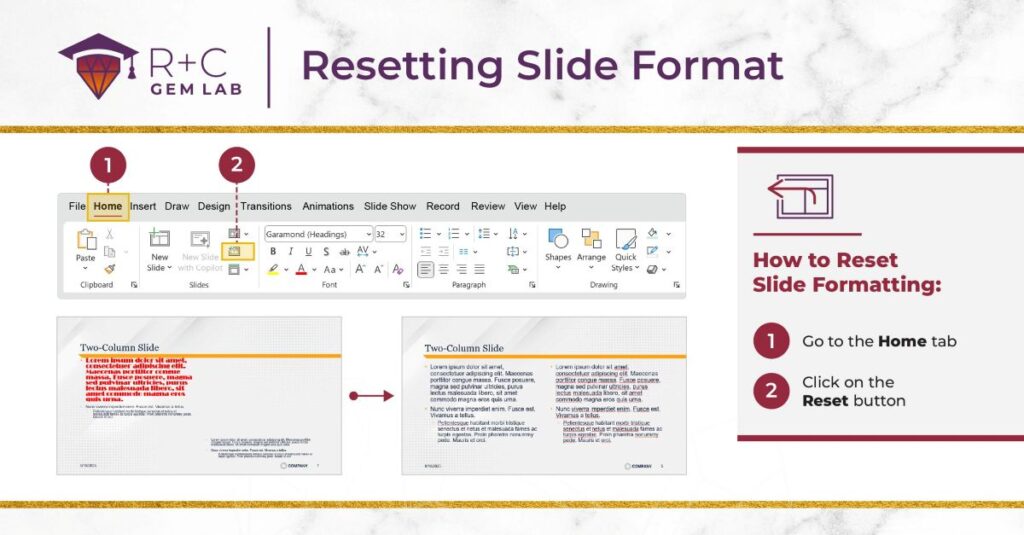
Sometimes a Frankendeck is beyond saving. But before you panic, there are quick fixes that can make a big difference in your workflow. Our Gem Lab quick tips—like keeping source formatting or using “reset style”—can save you from hours of frustration.
Check out the Gem Lab and the tip below to start taming your deck today.
Final invocation.
A Frankendeck might seem like a minor annoyance. But every broken layout, every mismatched animation, and every stitched-together template fragment erodes your message.
It’s time to reclaim your slides. Stitch them back together the right way—or better yet, build something new, bold, and alive with purpose.
Because nothing scares your audience more than Slide 12 flashing Comic Sans in a dimly lit conference room.

For further enjoyment.
